Facility Management
Overview
The Facility Management module allows authorized users to manage healthcare facilities, regions, and countries within the Lifebox M&E System. This module is essential for tracking device distributions, training sessions, surgical cases, and other M&E activities at specific locations.
Key Features
- Hierarchical location management (Regions → Countries → Facilities)
- Facility information tracking (name, type, address, coordinates)
- Integration with Device Distribution, Training, and Surgical Case modules
- Real-time facility status monitoring
- Relationship mapping between facilities and distributed data
Access Control
User Permissions
| Role | Access Level |
|---|---|
| System Admin | Full access (Create, Read, Update, Delete) |
| Data Manager | Full access (Create, Read, Update, Delete) |
| M&E Manager | Read-only access |
| Default User | No access |
⚠️ NOTE: Only Data Managers and System Admins are allowed to access and modify Regions, Countries, and Facilities modules.
Navigation
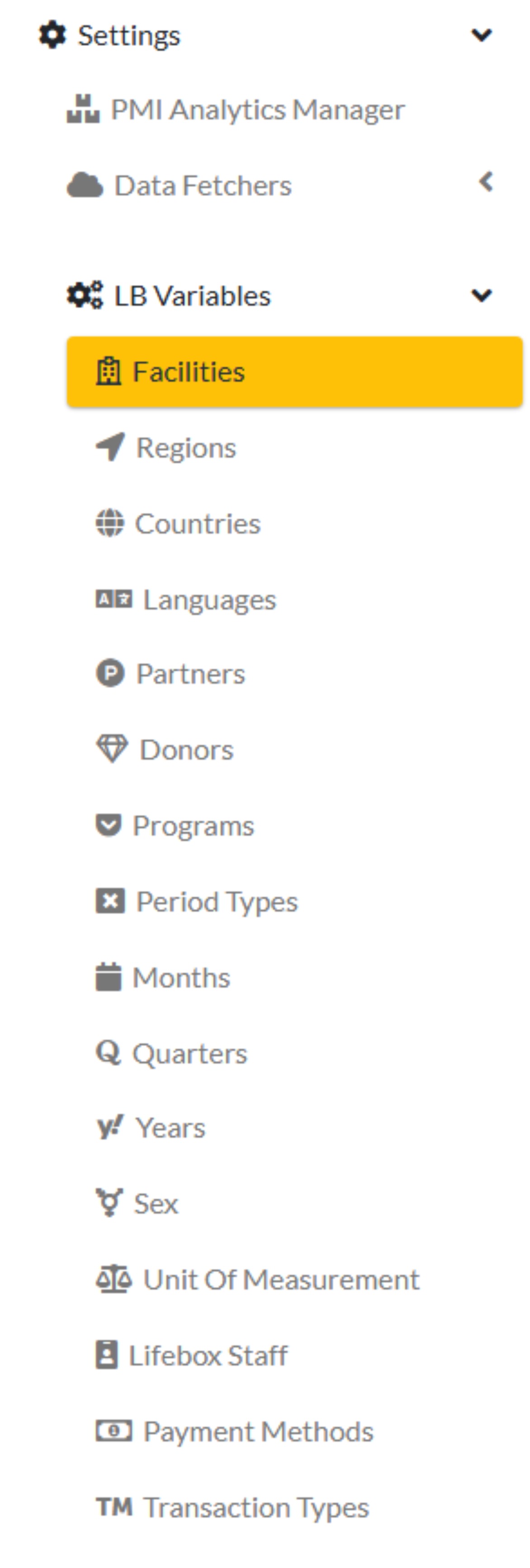
To access the Facility Management modules:
From there, you can access:
- Regions
- Countries
- Facilities
Location Hierarchy
┌─────────────────────────────────────────────────────────────────┐
│                        Location Hierarchy                       │
├─────────────────────────────────────────────────────────────────┤
│                                                                 │
│                    ┌──────────────────┐                         │
│                    │     Region       │                         │
│                    │  (e.g., Africa   │                         │
│                    │   -E&S)          │                         │
│                    └────────┬─────────┘                         │
│                             │                                   │
│                             ▼                                   │
│                    ┌──────────────────┐                         │
│                    │     Country      │                         │
│                    │  (e.g., Rwanda,  │                         │
│                    │   Ethiopia)      │                         │
│                    └────────┬─────────┘                         │
│                             │                                   │
│                             ▼                                   │
│                    ┌──────────────────┐                         │
│                    │    Facility      │                         │
│                    │  (e.g., Kibogora │                         │
│                    │   Hospital)      │                         │
│                    └──────────────────┘                         │
│                                                                 │
└─────────────────────────────────────────────────────────────────┘
Regions Management
Overview
Regions represent the highest level in the location hierarchy. Each region can contain multiple countries and facilities.
Regions List Interface
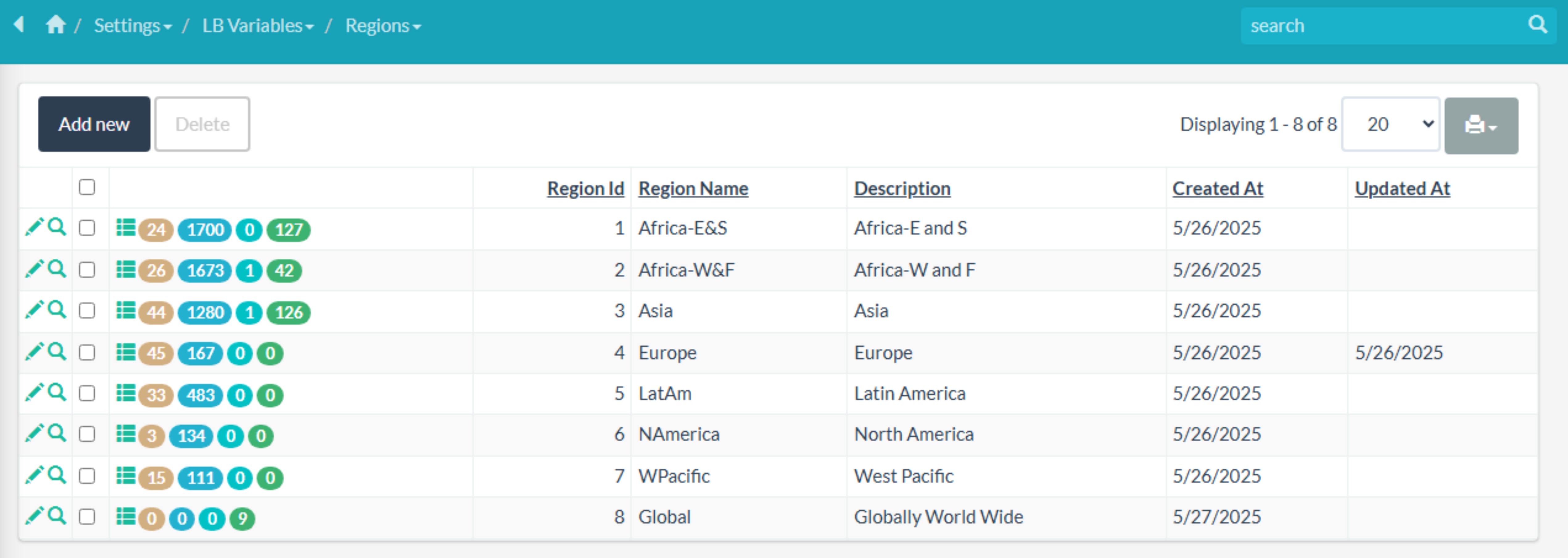
Figure 1: Regions List Interface
Regions Table Columns
| Column | Description |
|---|---|
| Region Id | Unique identifier for the region |
| Region Name | Name of the region (e.g., Africa-E&S) |
| Description | Additional information about the region |
| Created At | Date and time the region was created |
| Updated At | Date and time of the last update |
Example Regions Data
| Region Id | Region Name | Description | Created At | Updated At |
|---|---|---|---|---|
| 1 | Africa-E&S | Africa-E and S | 5/26/2025 | - |
Related Data Accessible from Region
From each region record, you can view related:
- Countries
- Device Distributions
- Lifebox Staff
- PMI Data Values
Adding a New Region
Steps to Add a Region
- Navigate to Settings → LB Variables → Regions
- Click on Add New button
- Enter the following information:
- Region Name (required)
- Description (optional)
- Click Save to create the region
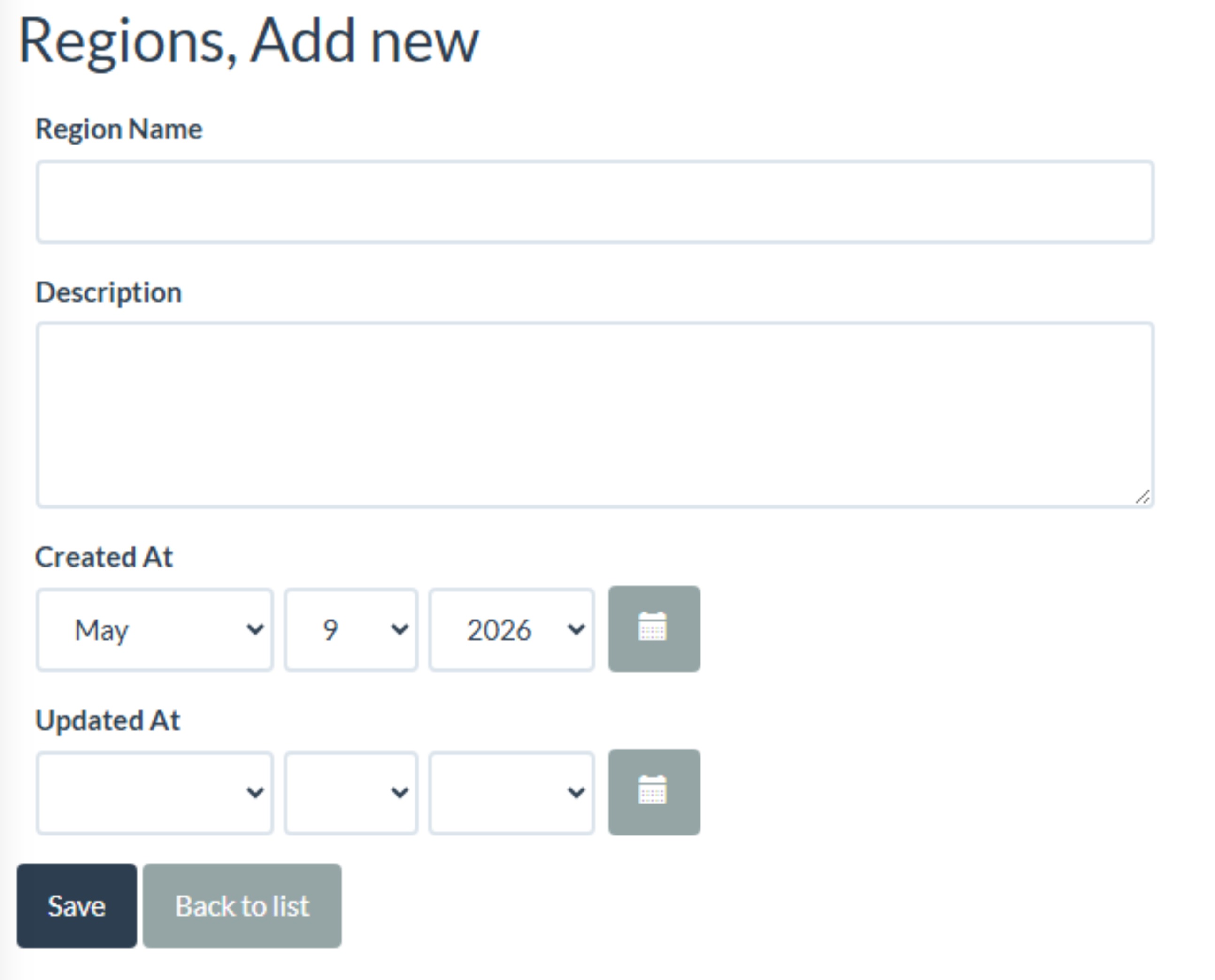
Figure 2: Adding a New Region
Editing a Region
Steps to Edit a Region
- Navigate to Settings → LB Variables → Regions
- Locate the region you want to edit
- Click the Edit button (pencil icon)
- Update the necessary fields
- Click Save to apply changes
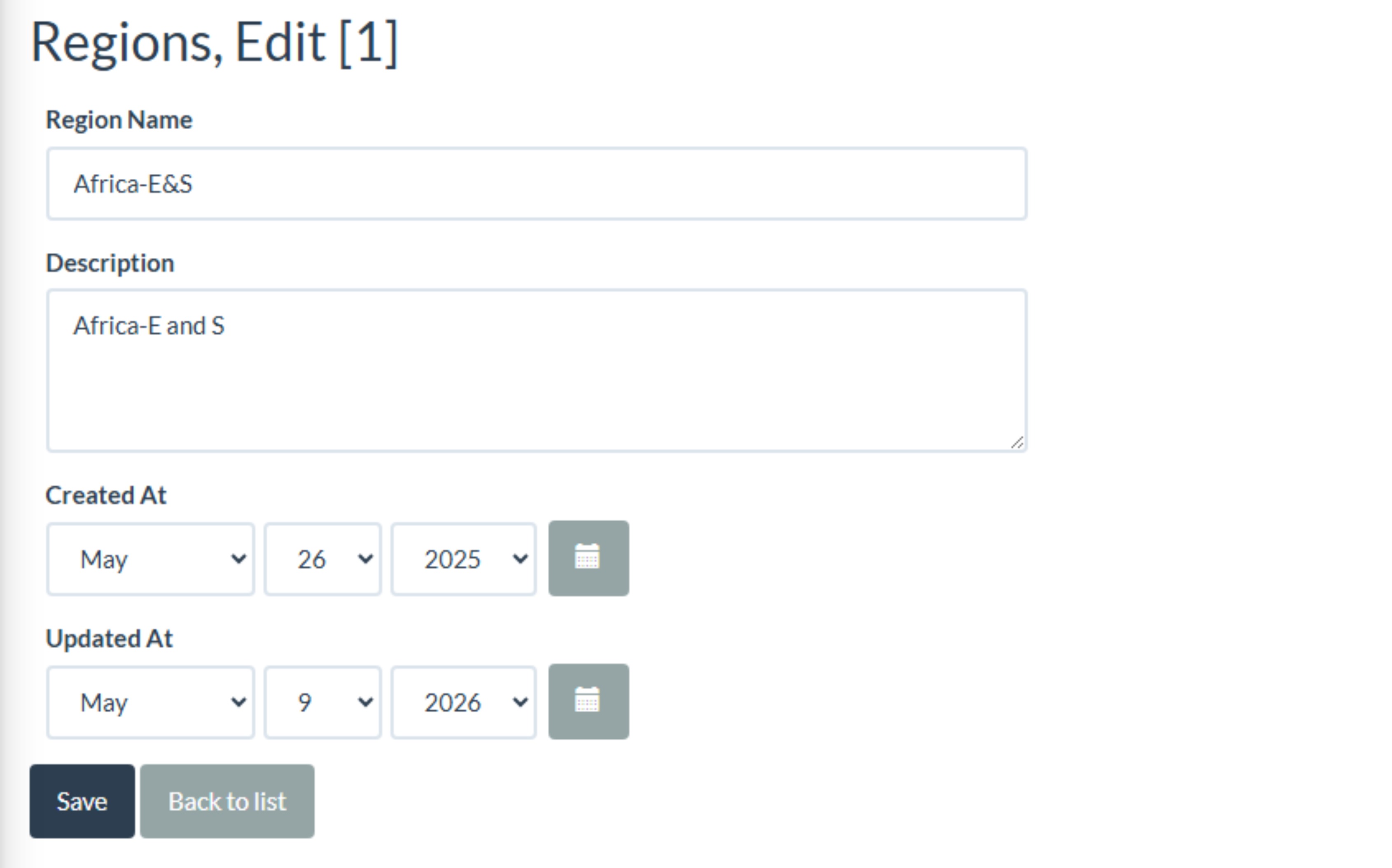
Figure 3: Editing a Region
Deleting a Region
⚠️ WARNING: Deleting a region will also affect all associated countries and facilities. Only delete if absolutely necessary.
Steps to Delete a Region
- Navigate to Settings → LB Variables → Regions
- Locate the region you want to delete
- Click the Delete button (trash icon)
- Confirm the deletion when prompted
Countries Management
Overview
Countries are linked to specific regions and contain multiple facilities. Each country record stores essential information including ISO codes for international identification.
Countries List Interface
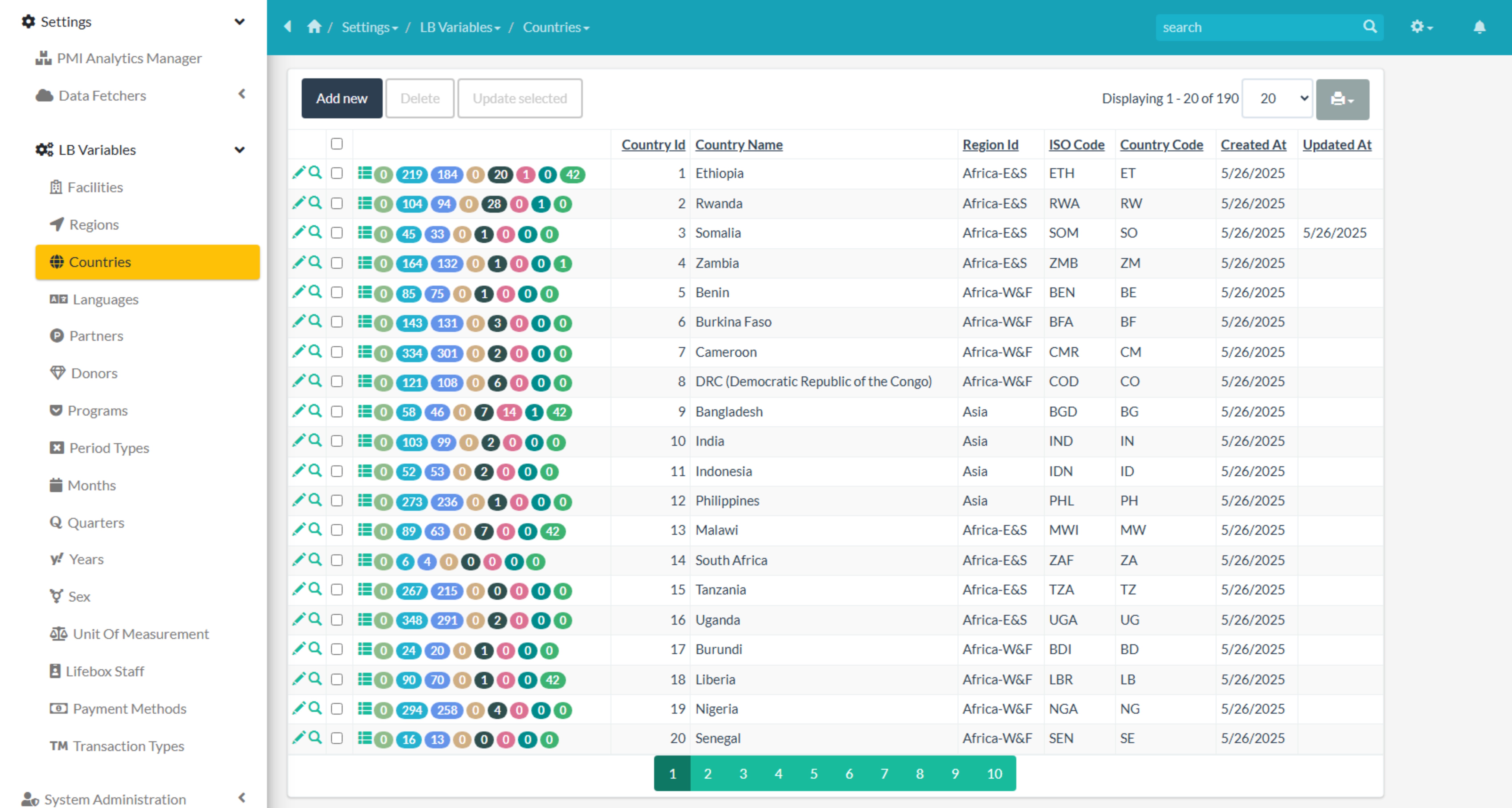
Figure 4: Countries List Interface
Countries Table Columns
| Column | Description |
|---|---|
| Country Id | Unique identifier for the country |
| Country Name | Name of the country |
| Region Id | Associated region (foreign key) |
| ISO Code | 3-letter ISO country code |
| Country Code | 2-letter country code |
| Created At | Date and time the country was created |
| Updated At | Date and time of the last update |
Example Countries Data
| Country Id | Country Name | Region Id | ISO Code | Country Code | Created At |
|---|---|---|---|---|---|
| 1 | Ethiopia | Africa-E&S | ETH | ET | 5/26/2025 |
| 2 | Rwanda | Africa-E&S | RWA | RW | 5/26/2025 |
| 3 | Somalia | Africa-E&S | SOM | SO | 5/26/2025 |
| 4 | Zambia | Africa-E&S | ZMB | ZM | 5/26/2025 |
Related Data Accessible from Country
From each country record, you can view related:
- Clean Cut Implementations
- Device Distributions
- Facilities
- Surgical Cases
- Training Sessions
- Training Participants
- Venues
- PMI Data Values
Adding a New Country
Steps to Add a Country
- Navigate to Settings → LB Variables → Countries
- Click on Add New button
- Enter the following information:
- Country Name (required)
- Region (select from dropdown)
- ISO Code (3-letter code, e.g., ETH, RWA)
- Country Code (2-letter code, e.g., ET, RW)
- Click Save to create the country
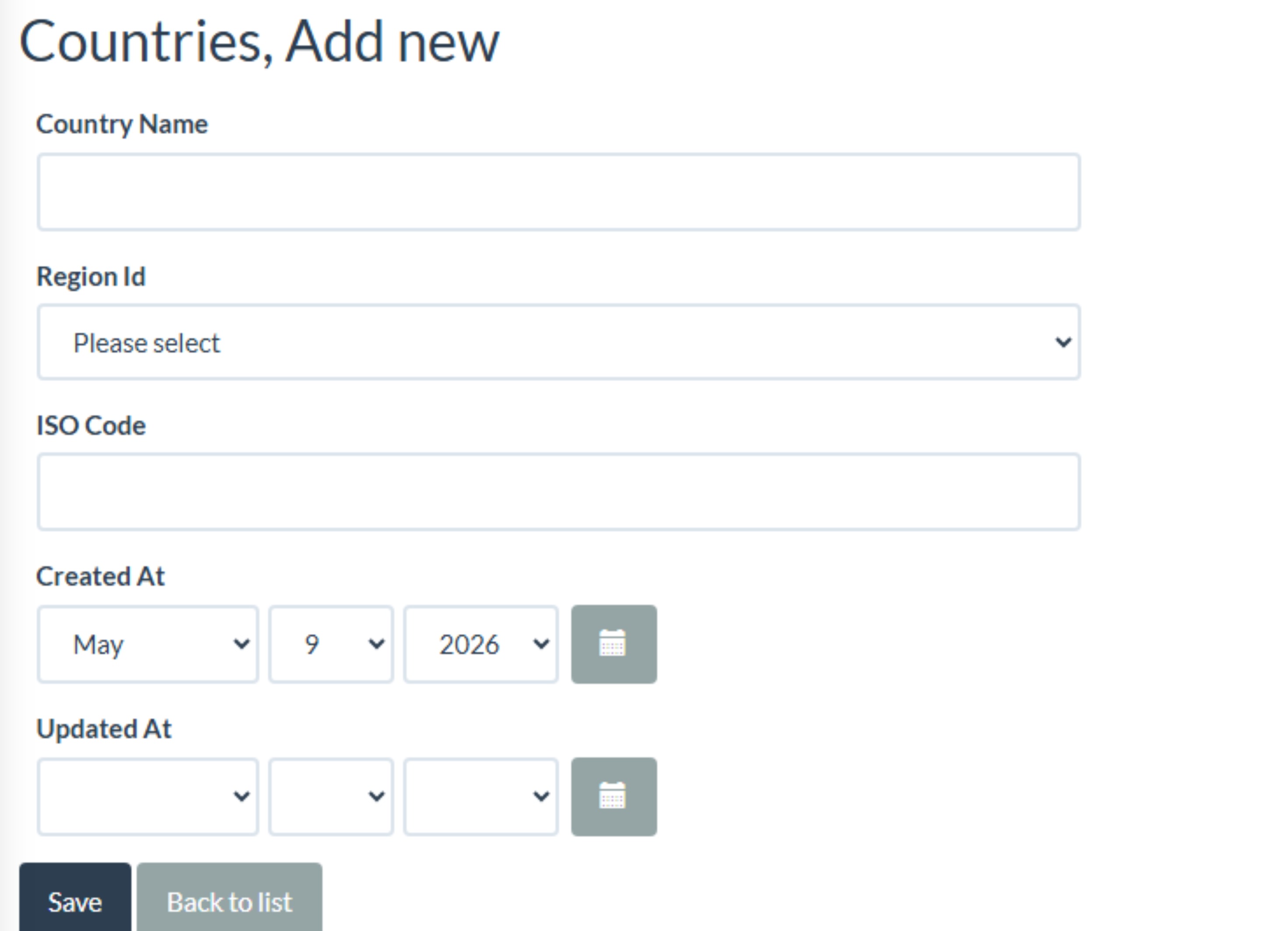
Figure 5: Adding a New Country
Editing a Country
Steps to Edit a Country
- Navigate to Settings → LB Variables → Countries
- Locate the country you want to edit
- Click the Edit button (pencil icon)
- Update the necessary fields
- Click Save to apply changes
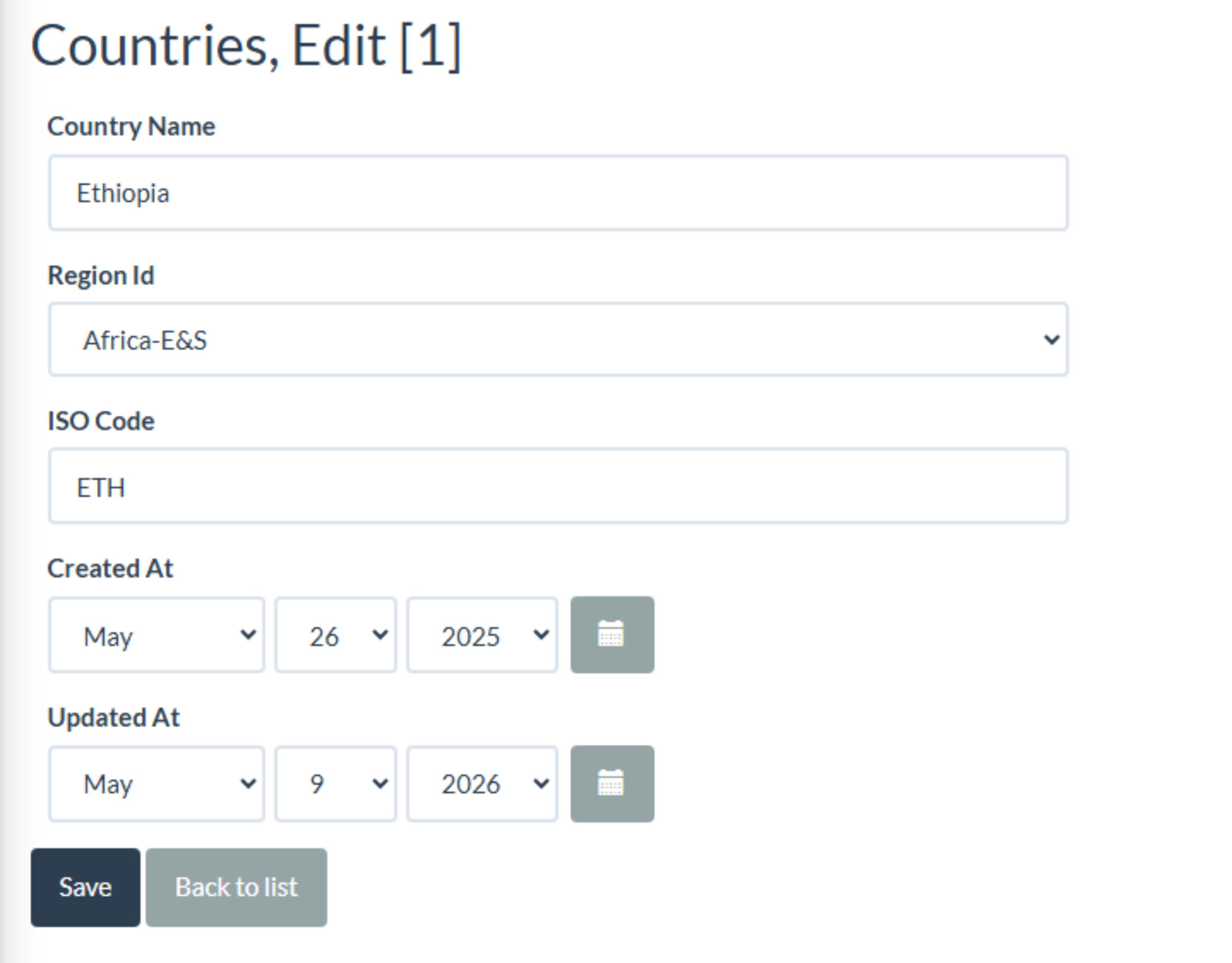
Figure 6: Editing a Country
ISO Code Reference
| Country | ISO Code (3-letter) | Country Code (2-letter) |
|---|---|---|
| Ethiopia | ETH | ET |
| Rwanda | RWA | RW |
| Somalia | SOM | SO |
| Zambia | ZMB | ZM |
| Kenya | KEN | KE |
| Uganda | UGA | UG |
| Tanzania | TZA | TZ |
| Nigeria | NGA | NG |
Facilities Management
Overview
Facilities represent individual healthcare institutions (hospitals, clinics, health centers) where Lifebox programs are implemented. Each facility is linked to a specific country and region.
Facilities List Interface
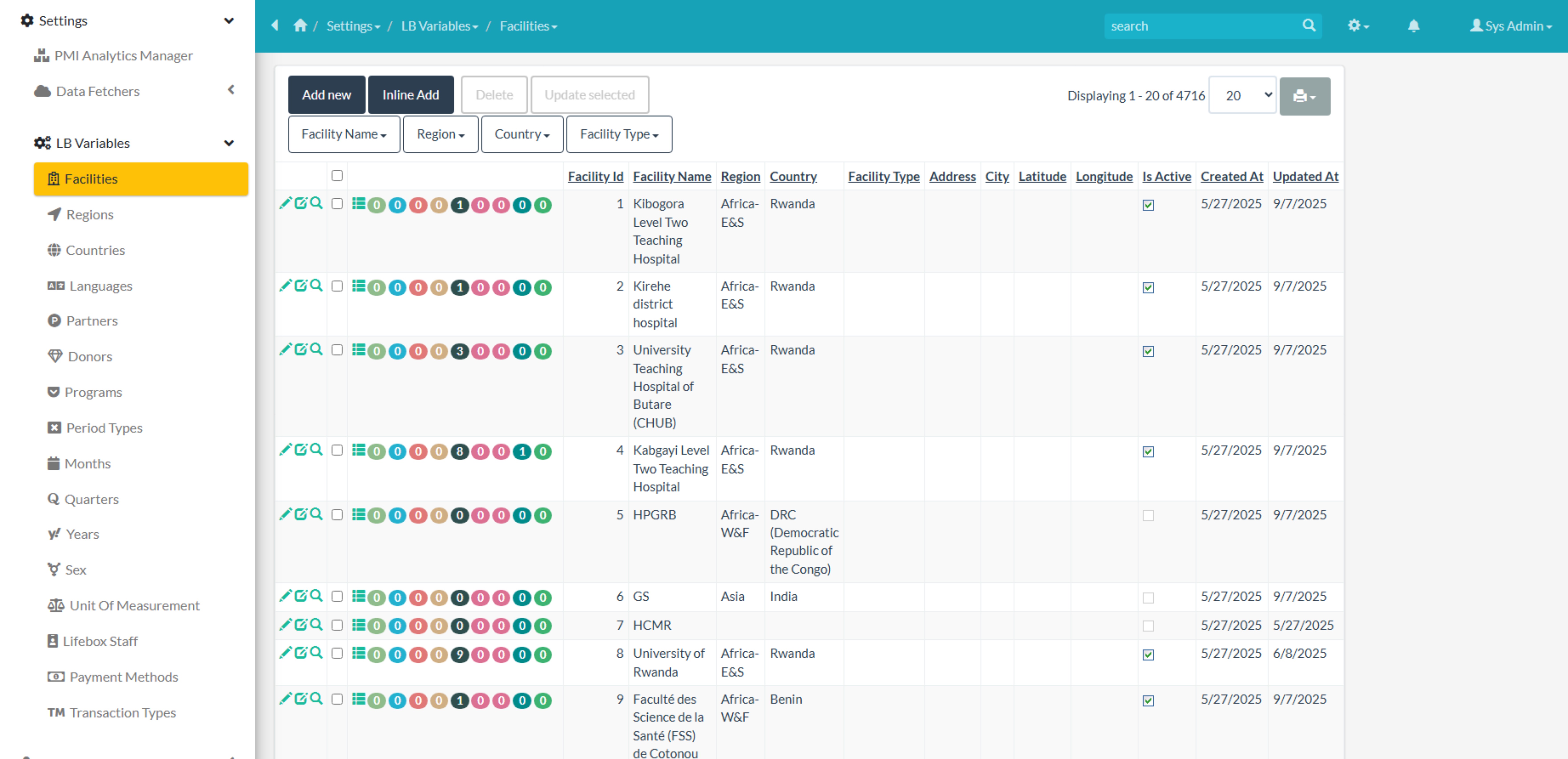
Figure 7: Facilities List Interface
Facilities Table Columns
| Column | Description |
|---|---|
| Facility Id | Unique identifier for the facility |
| Facility Name | Name of the healthcare facility |
| Region | Associated region |
| Country | Associated country |
| Facility Type | Type/category of facility |
| Address | Physical address |
| City | City where facility is located |
| Latitude | Geographic latitude coordinate |
| Longitude | Geographic longitude coordinate |
| Is Active | Facility status (Active/Inactive) |
| Created At | Date and time the facility was created |
| Updated At | Date and time of the last update |
Example Facilities Data
| Facility Id | Facility Name | Region | Country | Created At | Updated At |
|---|---|---|---|---|---|
| 1 | Kibogora Level Two Teaching Hospital | Africa-E&S | Rwanda | 5/27/2025 | 9/7/2025 |
| 2 | Kirehe district hospital | Africa-E&S | Rwanda | 5/27/2025 | 9/7/2025 |
| 3 | University Teaching Hospital of Butare (CHUB) | Africa-E&S | Rwanda | 5/27/2025 | 9/7/2025 |
Related Data Accessible from Facility
From each facility record, you can view related:
- Clean Cut Implementations
- Device Distributions
- Follow Ups
- Surgical Cases
- Training Sessions
- Ward Rounds
- Training Participants
- Venues
- PMI Data Values
Facility Edit Interface
The facility edit page allows you to view and modify all facility information.
Edit Page Fields
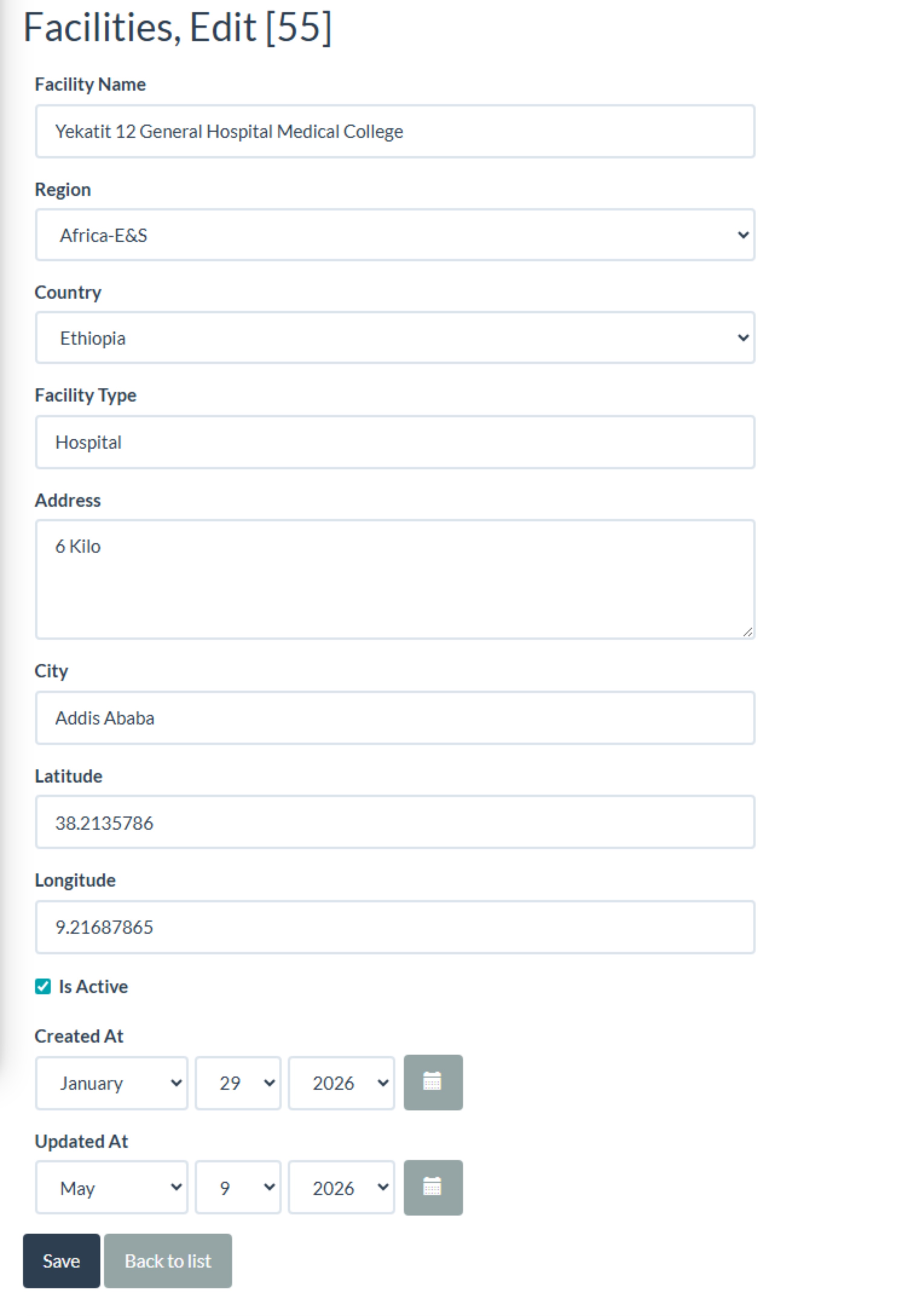
Figure 8: Facility Edit Interface
| Field | Type | Description | Required |
|---|---|---|---|
| Facility Name | Text | Official name of the facility | Yes |
| Region | Dropdown | Select from existing regions | Yes |
| Country | Dropdown | Select from existing countries | Yes |
| Facility Type | Dropdown | Type/category of facility | Yes |
| Address | Text | Street address | No |
| City | Text | City name | No |
| Latitude | Number | Geographic coordinate | No |
| Longitude | Number | Geographic coordinate | No |
| Is Active | Toggle | Facility status | Yes |
| Created At | Display | Auto-generated timestamp | System |
| Updated At | Display | Auto-generated timestamp | System |
Adding a New Facility
Prerequisites
Before adding a facility, ensure that:
- The Region exists in the system
- The Country exists in the system
- You have Data Manager or System Admin permissions
Steps to Add OR Edit a Facility
- Navigate to Settings → LB Variables → Facilities
- Click on Add New button or Click the Edit button (pencil icon) or click on the facility name
- Complete the following required fields:
- Facility Name (e.g., "Kibogora Level Two Teaching Hospital")
- Region (select from dropdown)
- Country (select from dropdown)
- Facility Type (select from dropdown)
-
Is Active (toggle to active)
-
(Optional) Fill in additional fields:
- Address
- City
- Latitude (e.g., -2.123456)
-
Longitude (e.g., 30.123456)
-
Click Save to create the facility
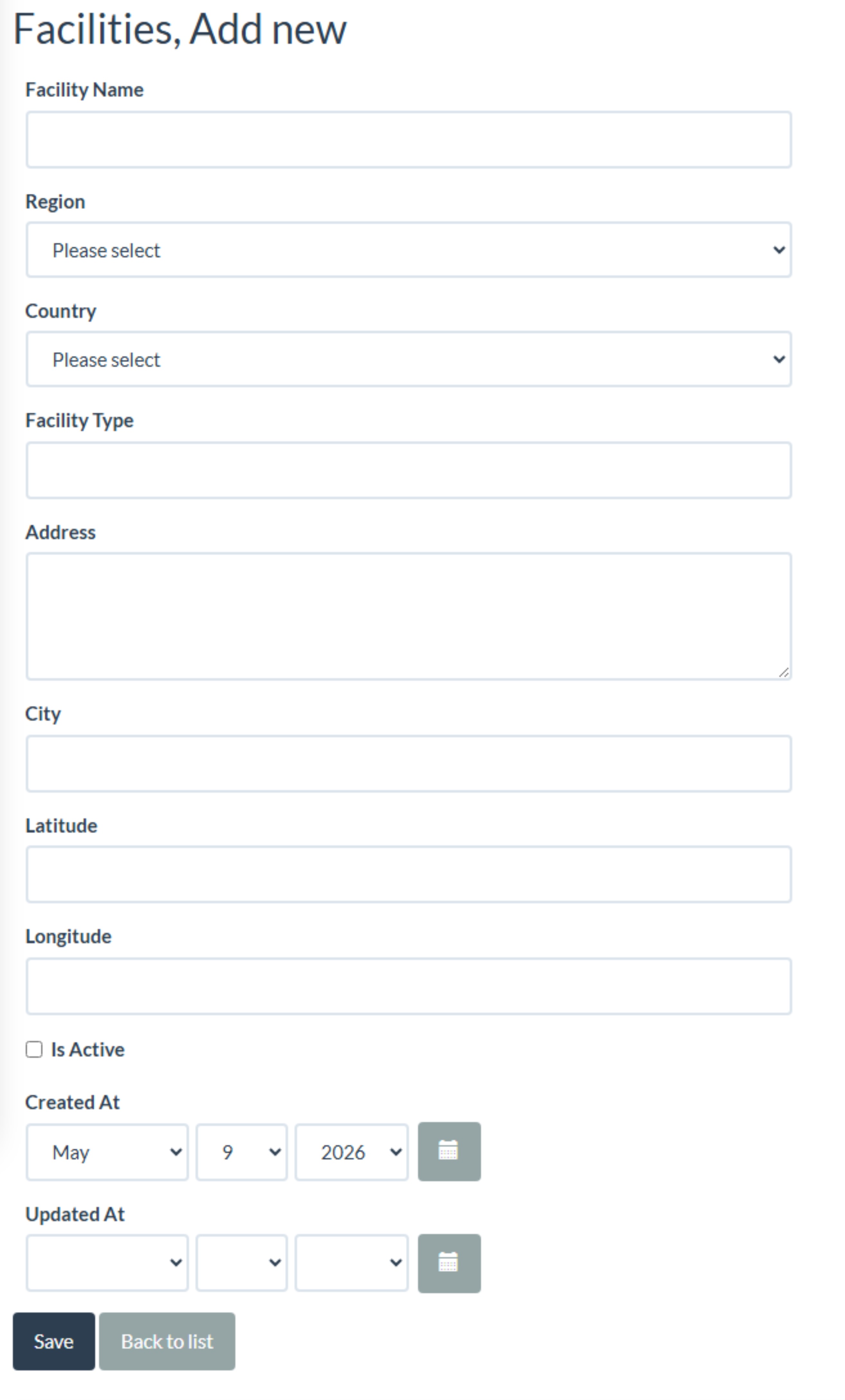
Figure 9: Adding a New Facility
Facility Types
Common facility types include:
| Facility Type | Description |
|---|---|
| Teaching Hospital | Academic medical center with training programs |
| District Hospital | Regional/district-level hospital |
| General Hospital | Comprehensive healthcare facility |
| Primary Health Center | Community-level health center |
| Clinic | Outpatient healthcare facility |
| Specialized Hospital | Specialty-focused hospital (e.g., cardiac, pediatric) |
Activating/Deactivating a Facility
To Deactivate a Facility
- Edit the facility record
- Toggle Is Active to OFF
- Click Save
- The facility will no longer appear in active dropdown selections
To Activate a Facility
- Edit the facility record
- Toggle Is Active to ON
- Click Save
- The facility will reappear in active dropdown selections
ℹ️ NOTE: Deactivating a facility does not delete historical data. All associated records (device distributions, training sessions, etc.) remain for reporting purposes.
Data Relationships
Facility Relationship Diagram
flowchart TD
    R[Region] --> C[Country]
    C --> F[Facility]

    F --> DD[Device Distributions]
    F --> TS[Training Sessions]
    F --> SC[Surgical Cases]
    F --> TP[Training Participants]
    F --> CCI[Clean Cut Implementations]
    F --> FU[Follow Ups]
    F --> WR[Ward Rounds]
    F --> V[Venues]
    F --> PMI[PMI Data Values]

    style R fill:#e1f5fe
    style C fill:#e8f5e9
    style F fill:#fff3e0
Related Data Counts
From the Facilities list, you can see counts of related data:
| Related Module | Description |
|---|---|
| Clean Cut Implementations | Number of Clean Cut program implementations |
| Device Distributions | Number of device distributions to this facility |
| Follow Ups | Number of follow-up visits/assessments |
| Surgical Cases | Number of surgical cases recorded |
| Training Sessions | Number of training sessions held at this facility |
| Ward Rounds | Number of ward rounds conducted |
| Training Participants | Number of training participants from this facility |
| Venues | Number of venues registered at this facility |
| PMI Data Values | Number of PMI data entries for this facility |
Bulk Operations
Importing Facilities via CSV
The system supports bulk import of facilities using standardized CSV templates.
CSV Template Format
Facility Name,Region,Country,Facility Type,Address,City,Latitude,Longitude,Is Active
Kibogora Hospital,Africa-E&S,Rwanda,Teaching Hospital,123 Main St,Kibogora,-2.123456,30.123456,Yes
Kirehe Hospital,Africa-E&S,Rwanda,District Hospital,456 Market Rd,Kirehe,-2.234567,30.234567,Yes
Steps to Import
- Navigate to Settings → LB Variables → Facilities
- Click on Import button
- Select the CSV file
- Map columns to system fields
- Click Import to begin the import process

Figure 10: Bulk Import Interface
Exporting Facilities
Steps to Export
- Navigate to Settings → LB Variables → Facilities
- Apply any desired filters
- Click on Export button
- Select export format (CSV, Excel, PDF)
- Save the exported file
Facility Management Workflow
flowchart TD
    A[Start] --> B{Region Exists?}
    B -->|No| C[Create Region]
    C --> D[Create Country]
    B -->|Yes| D

    D --> E{Country Exists?}
    E -->|No| F[Create Country]
    F --> G[Create Facility]
    E -->|Yes| G

    G --> H[Enter Facility Details]
    H --> I[Set Geographic Coordinates]
    I --> J[Set Active Status]
    J --> K[Save Facility]
    K --> L[Link to Related Data]
    L --> M[Monitor Activity]
    M --> N[End]
Best Practices
Data Entry
- ✅ Verify facility names match official records
- ✅ Use consistent naming conventions across all facilities
- ✅ Always select the correct region and country
- ✅ Include accurate geographic coordinates for mapping
- ✅ Keep facility contact information up to date
Data Management
- ✅ Regularly review and update facility information
- ✅ Deactivate facilities that are no longer operational
- ✅ Document facility type changes
- ✅ Maintain audit trails of facility modifications
- ✅ Backup facility data before bulk operations
Geographic Data
- ✅ Use decimal degrees for latitude and longitude
- ✅ Verify coordinates before saving
- ✅ Test coordinate links to mapping services
- ✅ Include city and address for physical location
Troubleshooting
Cannot Add Facility
Possible causes:
- Region not yet created
- Country not yet created
- Insufficient permissions
Solutions:
- Verify you have Data Manager or System Admin permissions
- Create the required region first
- Create the required country within the region
- Then create the facility
Facility Not Appearing in Dropdowns
Possible causes:
- Facility is deactivated (Is Active = OFF)
- Facility not saved properly
- Cache issues
Solutions:
- Check if "Is Active" is toggled ON
- Verify the facility exists in the Facilities list
- Clear browser cache and refresh
- Contact system administrator if issue persists
Duplicate Facilities
Prevention:
- Search for existing facilities before adding
- Use consistent naming conventions
- Implement periodic data quality reviews
Resolution:
- Identify and deactivate duplicate facility
- Migrate related data to the correct facility
- Delete or archive the duplicate record
Region or Country Missing
Solution:
- Navigate to Settings → LB Variables → Regions
- Add the missing region
- Navigate to Settings → LB Variables → Countries
- Add the missing country
- Return to facility creation/editing
Reporting and Analytics
Available Reports
| Report Type | Description |
|---|---|
| Facility Directory | Complete list of all facilities |
| Active Facility Report | Only active facilities |
| Regional Summary | Facilities grouped by region |
| Country Summary | Facilities grouped by country |
| Facility Activity Report | Facilities with related activity counts |
Generating Reports
- Navigate to Reports → Facility Reports
- Select report type
- Apply filters (region, country, status)
- Click Generate
- Export or print as needed
Integration with Other Modules
Device Distribution
Facilities are the primary recipients of device distributions. The Device Distribution module uses the Facility list to identify distribution locations.
Training Management
Training sessions, participants, and venues are all linked to specific facilities for location tracking.
Surgical Cases
Each surgical case is associated with a facility where the procedure was performed.
PMI Data Values
M&E data values are collected at the facility level for program monitoring.
Frequently Asked Questions
Q: Can a facility belong to multiple regions? A: No, each facility is associated with one country, which belongs to one region.
Q: What happens to historical data when a facility is deactivated? A: Historical data remains intact and accessible for reporting. Only new selections are affected.
Q: How do I update a facility's location? A: Edit the facility record and update the latitude/longitude fields.
Q: Can I track facility closures? A: Yes, set the facility status to "Inactive" when it closes. Historical data remains for analysis.
Q: How do I get coordinates for a facility? A: Use tools like Google Maps to find latitude and longitude, then enter them in the facility edit form.
Q: Is there a limit to how many facilities I can add? A: No, the system can accommodate any number of facilities.
Related Documentation
Document Version: 1.0 Last Updated: May 2026 Maintained by: MERQ Consultancy