Device Management
Overview
Like the training data entry, the system supports manual data entry and importing using standardized templates for device distribution. The Device Distribution Log and Device Inventory Changes modules are auto-calculated, and no actual data entry takes place in these submenus.
Key Features
- Manual device distribution data entry
- Bulk import via standardized templates
- Auto-calculated inventory tracking
- Real-time stock monitoring
- Distribution history logging
- Facility-level tracking
- Donor and transaction recording
Device Distribution Data Entry
Device Distribution
The system allows users to add new records, perform inline adding, and update existing information when required by selecting the existing record. These features enable users to capture and manage different variables, including surgical volume at the health facility level and the status of use at the receiving facility.
Devices
The Devices module captures information about: - Device type - Model and specifications - Available quantity - Total quantity at warehouse level - Manufacturer details - Warranty information - Pricing
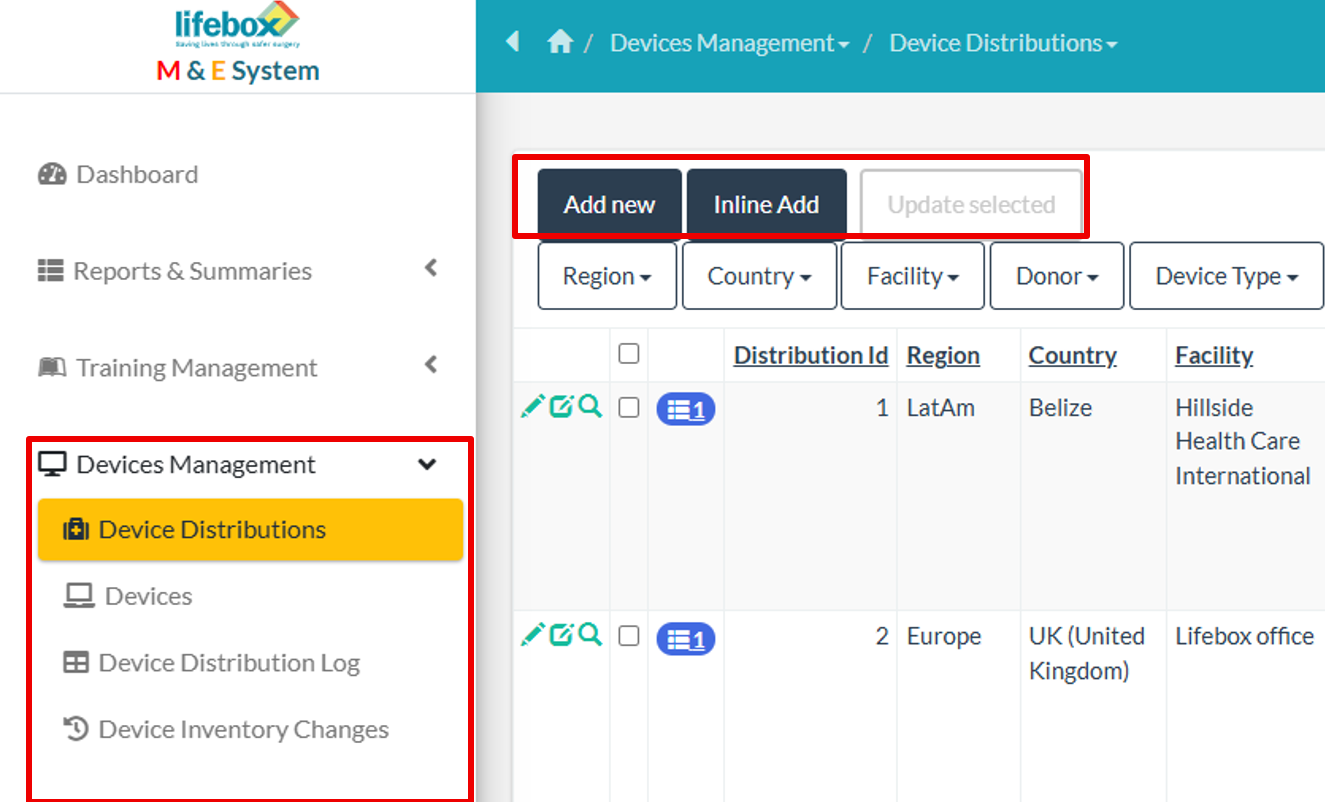
Figure 8. Device distribution and devices data management
Device Parameters and Settings
In order for a device to be distributed, the device must first be added under the Devices module.
Devices List
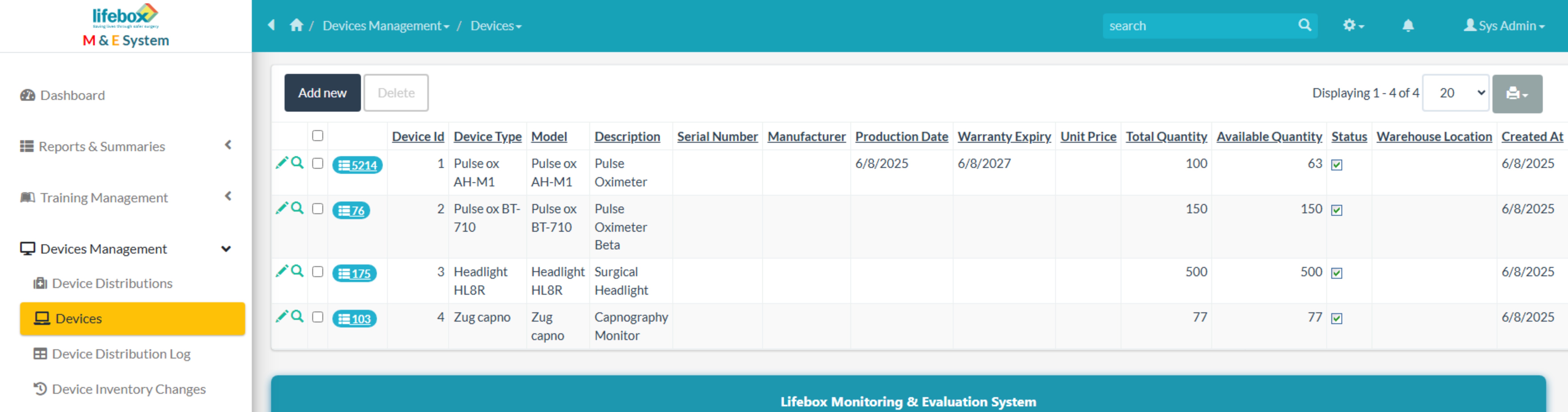
Devices List Interface
Steps to Add a New Device
- Click on Devices menu from the left sidebar menu under Device Management
- Click on Add New
- Enter the following device information:
- Device Type
- Model
- Description
- Serial Number (SN)
- Manufacturer
- Production Date
- Warranty Date
- Price (if available)
- Quantity in Stock Balance
- Total Quantity
- Status (check to make it available)
- Warehouse Location (if applicable)
- Click on Save so that the device will be available for distribution
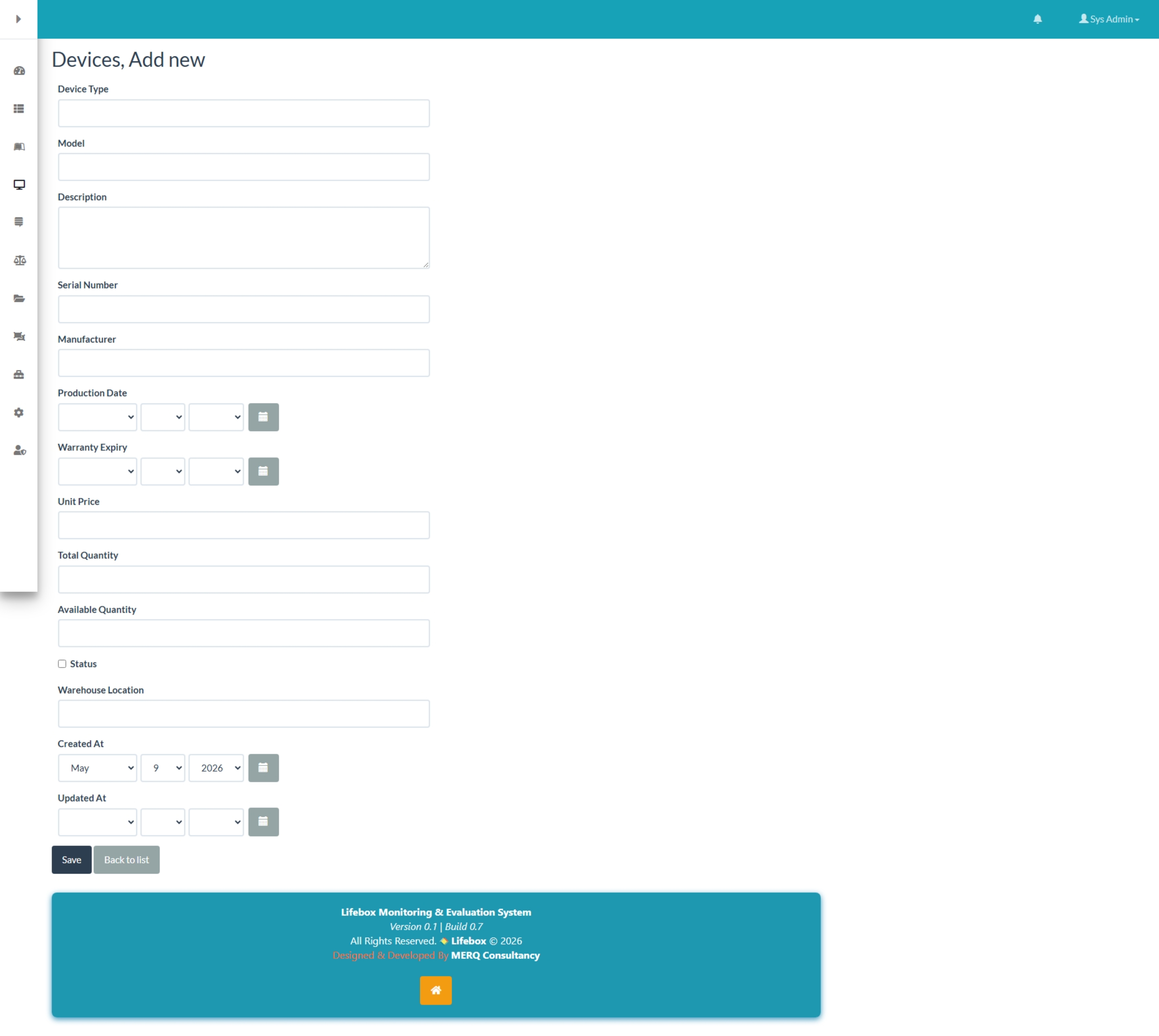
Adding a New Device
Device Distribution – Add New
Overview
The Device Distribution – Add New page allows administrators and authorized users to record new medical device distributions within the system.
This page is used to track:
- Device allocations
- Distribution locations
- Quantities distributed
- Receiving status
- Usage status
- Donor and transaction information
Navigation
To access the page:
Device Distribution Form Interface
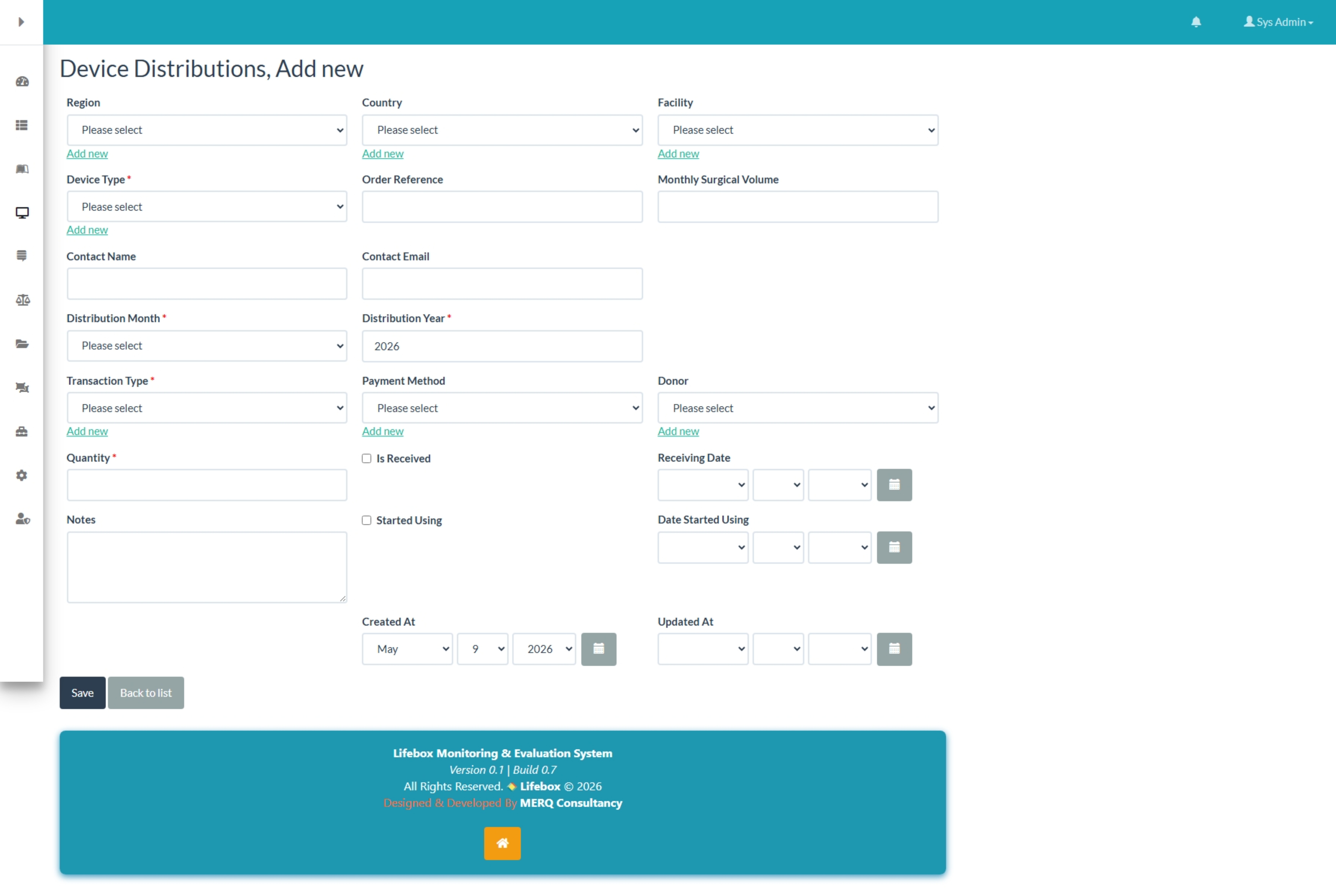
Device Distribution Add New Form
Purpose of the Page
The Add New Device Distribution form is used to:
- Register distributed medical devices
- Track facilities receiving devices
- Monitor device usage and delivery status
- Maintain donor and transaction records
- Support monitoring and evaluation activities
Device Distribution Form Sections
1. Location Information
Region
Select the region where the device is being distributed.
| Attribute | Description |
|---|---|
| Field Type | Dropdown selection |
| Actions | Select existing region or click Add new to create a new region |
Country
Select the country receiving the device.
| Attribute | Description |
|---|---|
| Field Type | Dropdown selection |
| Actions | Select existing country or click Add new to create a new country |
Facility
Select the healthcare facility receiving the device.
| Attribute | Description |
|---|---|
| Field Type | Dropdown selection |
| Actions | Select existing facility or click Add new to register a new facility |
2. Device Information
Device Type
Select the type of medical device being distributed.
| Attribute | Description |
|---|---|
| Field Type | Dropdown selection |
| Examples | Pulse Oximeter, Capnograph, Oxygen Analyzer |
| Actions | Select existing device type or click Add new to create a new device type |
Quantity
Enter the number of devices distributed.
| Attribute | Description |
|---|---|
| Field Type | Numeric input |
| Example | 10 |
Order Reference
Enter the purchase order, shipment, or reference number associated with the distribution.
| Attribute | Description |
|---|---|
| Field Type | Text input |
| Example | PO-2026-00125 |
3. Distribution Information
Distribution Month
Select the month the devices were distributed.
| Attribute | Description |
|---|---|
| Field Type | Dropdown selection |
Distribution Year
Select the distribution year.
| Attribute | Description |
|---|---|
| Field Type | Text/Numeric input |
| Example | 2026 |
Transaction Type
Select the transaction category.
| Attribute | Description |
|---|---|
| Field Type | Dropdown selection |
| Examples | Donation, Purchase, Replacement, Loan |
| Actions | Select existing or click Add new |
Payment Method
Select the payment method used.
| Attribute | Description |
|---|---|
| Field Type | Dropdown selection |
| Examples | Cash, Bank Transfer, Grant Funding, Donor Sponsored |
| Actions | Select existing or click Add new |
Donor
Select the donor or supporting organization.
| Attribute | Description |
|---|---|
| Field Type | Dropdown selection |
| Examples | Lifebox, Smiletrain, UNICEF |
| Actions | Select existing or click Add new |
4. Facility Activity Information
Monthly Surgical Volume
Enter the average number of surgeries performed monthly at the facility.
| Attribute | Description |
|---|---|
| Field Type | Numeric input |
| Example | 250 |
5. Contact Information
Contact Name
Enter the name of the primary contact person at the receiving facility.
| Attribute | Description |
|---|---|
| Field Type | Text input |
| Example | Dr. Michael Teferra |
Contact Email
Enter the contact person's email address.
| Attribute | Description |
|---|---|
| Field Type | Email input |
| Example | michael@example.com |
6. Receiving Status
Is Received
Indicates whether the facility has received the devices.
| Attribute | Description |
|---|---|
| Field Type | Radio buttons / Toggle |
| Options | Yes, No |
Receiving Date
Select the date the devices were received.
| Attribute | Description |
|---|---|
| Field Type | Date picker |
7. Usage Status
Started Using
Indicates whether the facility has started using the distributed devices.
| Attribute | Description |
|---|---|
| Field Type | Radio buttons / Toggle |
| Options | Yes, No |
Date Started Using
Select the date the facility began using the devices.
| Attribute | Description |
|---|---|
| Field Type | Date picker |
8. Notes Section
Notes
Use this field to enter additional comments or observations.
| Attribute | Description |
|---|---|
| Field Type | Text area |
| Examples | Delayed shipment due to customs clearance, Devices installed successfully, Training completed for staff |
9. System Fields
Created At
Displays the date the record was created.
| Attribute | Description |
|---|---|
| Field Type | Auto-generated timestamp |
| Example | May 9, 2026 |
Updated At
Displays the date and time of the most recent update to the record.
| Attribute | Description |
|---|---|
| Field Type | Auto-generated timestamp |
Adding Related Records
Several dropdown fields include an Add new option. This allows users to create related records directly from the form without leaving the page.
Supported Quick Add Fields
- Region
- Country
- Facility
- Device Type
- Transaction Type
- Payment Method
- Donor
Example Workflow: Adding a New Device Distribution
- Select the region and country
- Choose the receiving facility
- Select the device type
- Enter quantity and order reference
- Select distribution month and year
- Choose transaction type and payment method
- Select donor information
- Enter contact details
- Mark whether devices were received
- Add usage status and notes
- Save the record
Additional Modules under Device Management
Device Distribution Log
The Device Distribution Log tracks all device distribution transactions and inventory changes within the system.
Uses
- Monitor device distribution activities
- Track inventory deductions
- Maintain audit history
- Identify stock movement
- Support reporting and accountability
Device Distribution Log Interface
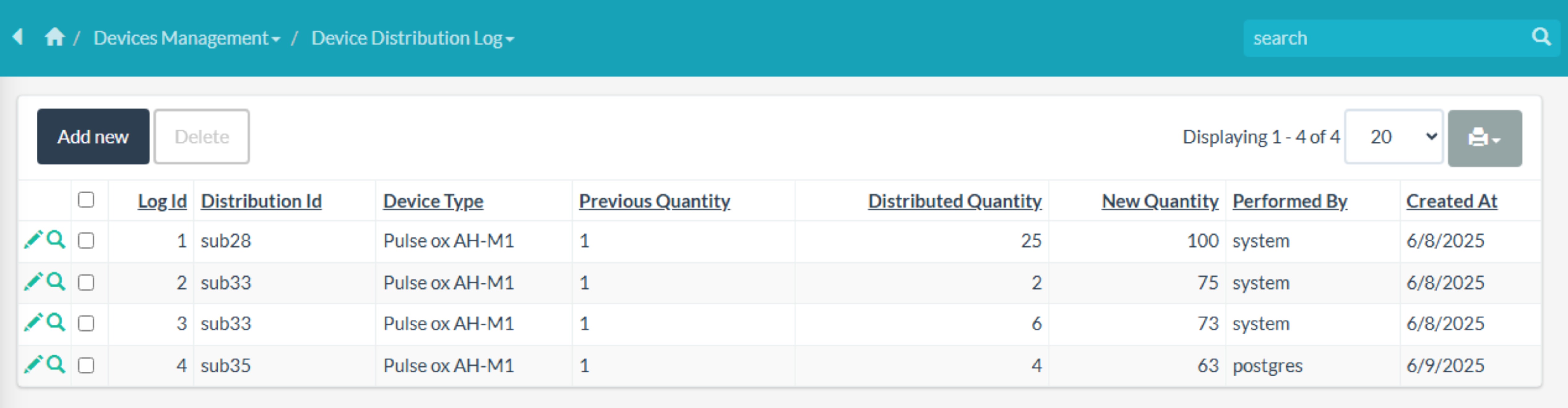
Device Distribution Log Interface
Access
Main Information Displayed
| Column | Description |
|---|---|
| Log Id | Unique log record ID |
| Distribution Id | Related distribution reference |
| Device Type | Distributed device |
| Previous Quantity | Stock before distribution |
| Distributed Quantity | Quantity distributed |
| New Quantity | Remaining stock |
| Performed By | User/system that performed the transaction |
| Created At | Transaction date |
Example Log Entry
| Distribution Id | Device Type | Distributed Quantity | New Quantity |
|---|---|---|---|
| sub35 | Pulse ox AH-M1 | 4 | 63 |
Device Inventory Changes
The Device Inventory Changes module provides a summary of current inventory levels and device availability.
Uses
- Monitor available inventory
- Track stock balances
- Support procurement planning
- Prevent stock shortages
- Review distribution impact on inventory
Device Inventory Changes Interface
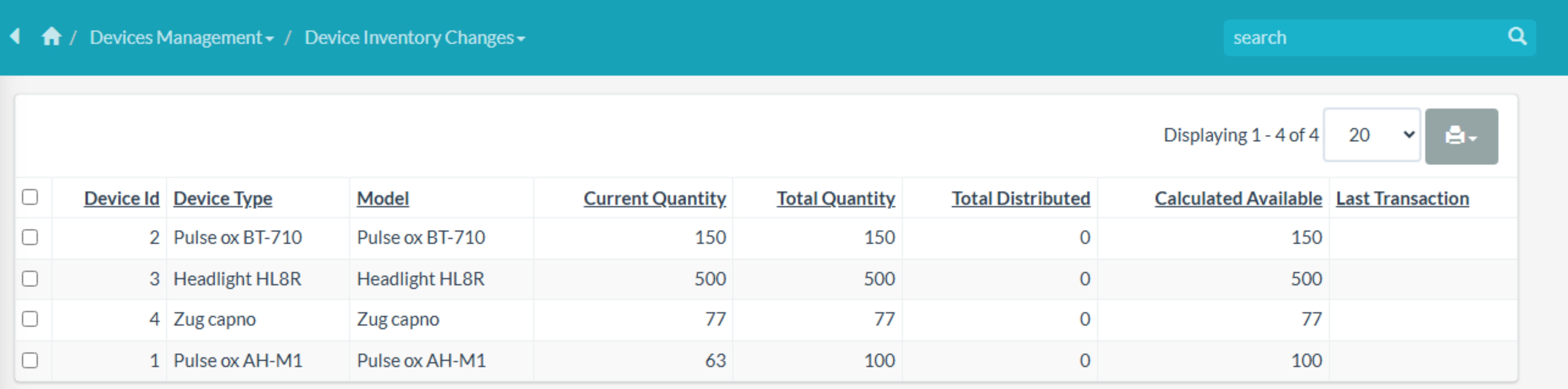
Device Inventory Changes Interface
Access
Main Information Displayed
| Column | Description |
|---|---|
| Device Id | Inventory record ID |
| Device Type | Device name/type |
| Model | Device model |
| Current Quantity | Current stock available |
| Total Quantity | Original stock quantity |
| Total Distributed | Total distributed devices |
| Calculated Available | Remaining available stock |
| Last Transaction | Latest inventory activity |
Example Inventory Record
| Device Type | Current Quantity | Total Quantity | Calculated Available |
|---|---|---|---|
| Pulse ox AH-M1 | 63 | 100 | 63 |
Inventory Calculation Formula
Example Calculation:
Module Summary
| Module | Purpose |
|---|---|
| Device Distribution Log | Tracks distribution transactions and inventory movement |
| Device Inventory Changes | Displays current stock and inventory availability |
These modules help maintain accurate inventory records and support Monitoring & Evaluation (M&E) reporting.
Device Management Workflow Diagram
flowchart TD
    A[Add Device to Inventory] --> B[Device Available in Stock]
    B --> C[Create Distribution Record]
    C --> D[Select Recipient Facility]
    D --> E[Enter Distribution Details]
    E --> F[Save Distribution Record]
    F --> G[Auto-Calculate Inventory]
    G --> H[Update Distribution Log]
    H --> I[Update Inventory Changes]
    I --> J[Monitor Usage Status]
    J --> K[Generate Reports]
Best Practices
Data Entry
- ✅ Verify facility information before submission
- ✅ Ensure quantities are accurate and match physical distribution
- ✅ Record receiving dates immediately after confirmation
- ✅ Update usage status when devices become operational
- ✅ Include detailed notes for tracking and reporting
Inventory Management
- ✅ Regularly reconcile physical inventory with system records
- ✅ Set up low stock alerts for critical devices
- ✅ Review distribution logs monthly for accuracy
- ✅ Document any discrepancies immediately
Reporting
- ✅ Generate monthly distribution summaries
- ✅ Track device utilization rates by facility
- ✅ Monitor donor contributions and allocations
- ✅ Prepare quarterly inventory reports
Troubleshooting
Unable to Save Record
Possible causes:
- Required fields are missing
- Invalid email format
- Quantity field contains non-numeric values
- Required dropdown selections not completed
Solutions:
- Review all required fields (marked with *)
- Verify email address format:
name@example.com - Ensure quantity is a positive number
- Complete all dropdown selections
Facility Not Found
If the facility does not appear in the dropdown:
- Click Add new next to the Facility field
- Create the facility record with all required information
- Return to the distribution form
- Refresh the Facility dropdown
- Select the newly added facility
Inventory Discrepancy
If the calculated inventory doesn't match physical stock:
- Review the Device Distribution Log for recent transactions
- Verify all distributions have been properly recorded
- Check for any manual adjustments needed
- Contact system administrator if issue persists
Device Not Available in Dropdown
If a device type is not available for selection:
- Navigate to Device Management → Devices
- Verify the device exists and status is "Available"
- Check if quantity in stock is greater than zero
- Add new device if needed using the Add New button
Monitoring and Reporting Use
The Device Distribution module supports:
- ✅ Device tracking across all facilities
- ✅ Donor reporting with detailed distribution records
- ✅ Facility-level monitoring of equipment
- ✅ Equipment utilization analysis
- ✅ Distribution audits and compliance
- ✅ Monitoring & Evaluation (M&E) activities
- ✅ Supply chain optimization
- ✅ Procurement planning
Related Documentation
Frequently Asked Questions
Q: Can I import device distributions in bulk? A: Yes, the system supports bulk import using standardized CSV/Excel templates.
Q: How often is the inventory automatically updated? A: Inventory is updated in real-time as distribution records are saved.
Q: Can I edit a distribution record after saving? A: Yes, you can edit existing records, which will automatically update inventory calculations.
Q: How do I track devices that are returned or replaced? A: Use the Transaction Type field to record returns, replacements, or repairs.
Q: Can I generate reports by donor or time period? A: Yes, the reporting module allows filtering by donor, date range, facility, and device type.